
Uptime Kuma notifications on your iPhone
Connect Uptime Kuma to Honk, and a monitor that goes down reaches your iPhone as a Long honk. When it comes back up, Honk closes the problem with a recovery. Every monitor gets its own group, whether it checks a website, a port, a DNS record or a container.
Uptime Kuma already has dozens of notification types, Pushover and ntfy among them. Honk adds what an inbox needs: each outage is one problem with a start and an end, repeats fold into it, and your monitors sit next to your shop, your payments and your cron jobs, with quiet hours per project.
Before you start
- A Honk account. Honk is invite-only for now: request access.
- A project for your sites or servers, in a workspace where you’re an owner or admin.
- Uptime Kuma, able to reach honk-honk.app over HTTPS.
1. Create the connection in Honk
In the Honk web app, open the project, go to Connections and click Connect a service. Choose Uptime Kuma, keep the name or change it, and click Connect. Honk shows the connection’s Webhook URL, which starts with https://honk-honk.app/v1/hooks/uptime_kuma/.
Uptime Kuma doesn’t sign its webhooks, so there’s no secret: the URL itself is the key. Keep it private. If it leaks, choose New URL in the connection’s menu, and the old one stops working at once.
2. Add a webhook notification in Uptime Kuma
In Uptime Kuma, open Settings ▸ Notifications and click Setup Notification. Choose Webhook as the Notification Type, give it a name, and paste the URL from Honk into Post URL.
Leave Request Body on Preset - application/json. Honk reads Uptime Kuma’s own format, so there’s no template to write and no header to add. Turn on Default enabled to add it to new monitors, and Apply on all existing monitors for the ones you have. Then click Save.
3. Test it
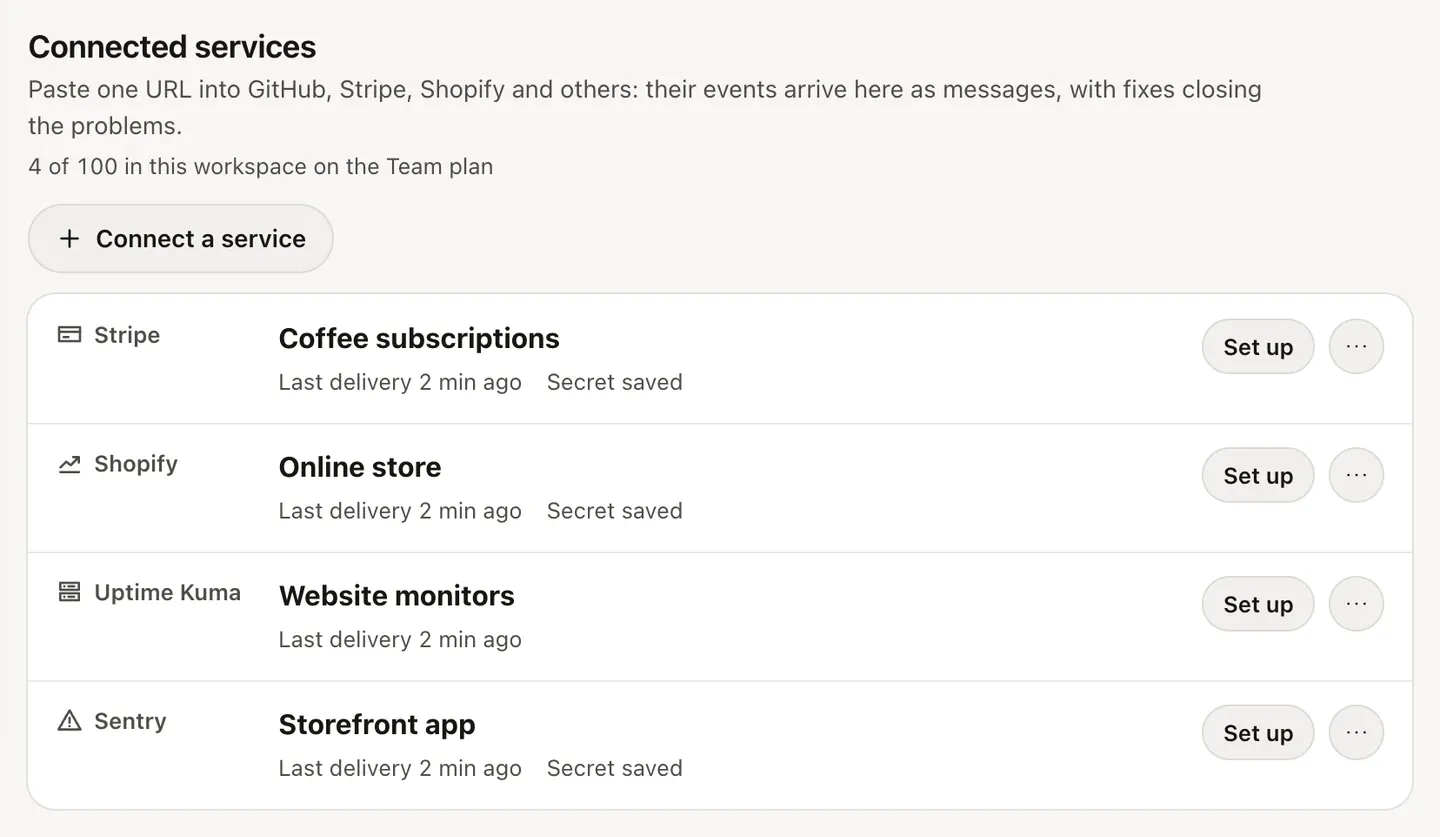
The Test button sends a sample without a monitor. Honk accepts it without adding a message, and the connection shows it as its last delivery.
To see a real push, add a monitor for an address that doesn’t answer, such as https://example.invalid. Once Uptime Kuma marks it down, a Long honk arrives. Delete the monitor afterwards.
What arrives
- Down: a problem, a Long honk titled “Shop is down” with the monitor’s name, and Uptime Kuma’s message, such as a timeout or a status code.
- Up: a recovery, “Shop is up”, which closes the problem and is pushed right away. An up with no open problem, such as a new monitor’s first check, is dropped.
- Pending and maintenance: ignored. A monitor that’s retrying stays quiet until Uptime Kuma calls it down.
If you’ve set Uptime Kuma to resend the notification while a monitor stays down, the repeats fold into the open problem as an update with a count, at most one every 5 minutes.
If you’ve turned on Live Activities in Honk for iPhone, the outage can stay on your Lock Screen until the monitor is back up.
Waking up for it
Quiet hours hold every push that isn’t urgent, and a connection never sends urgent messages on its own. If a monitor going down should wake you, add a rule under the project’s Rules: when Source equals uptime_kuma and Event type equals problem, Raise priority to at least Urgent. Then turn on Let urgent messages through in your quiet hours. Save that for the monitors that really matter, with a third condition on the title.
Plans and limits
Each connection counts toward your workspace’s plan: Free includes 2, Pro 20 and Team 100. One connection covers every monitor in Uptime Kuma. Its messages count toward the plan’s daily message and push limits like any others; pricing lists them.
No Uptime Kuma? The website down guide checks a site with a small script and cron. For alerts from Prometheus or Grafana, see the Grafana and Alertmanager guide, and the integrations page lists every other way to send to Honk.
Honk is invite-only for now: request access. Everything in this guide works on the Free plan.